How to Build Service Area Pages From Your GBP (Without Thin Content)
Your Google Business Profile lists the areas you serve. Your website can turn that list into pages that rank for each town. Here is how to pick the towns, what each page needs, and where thin pages become a risk.

Quick Answer
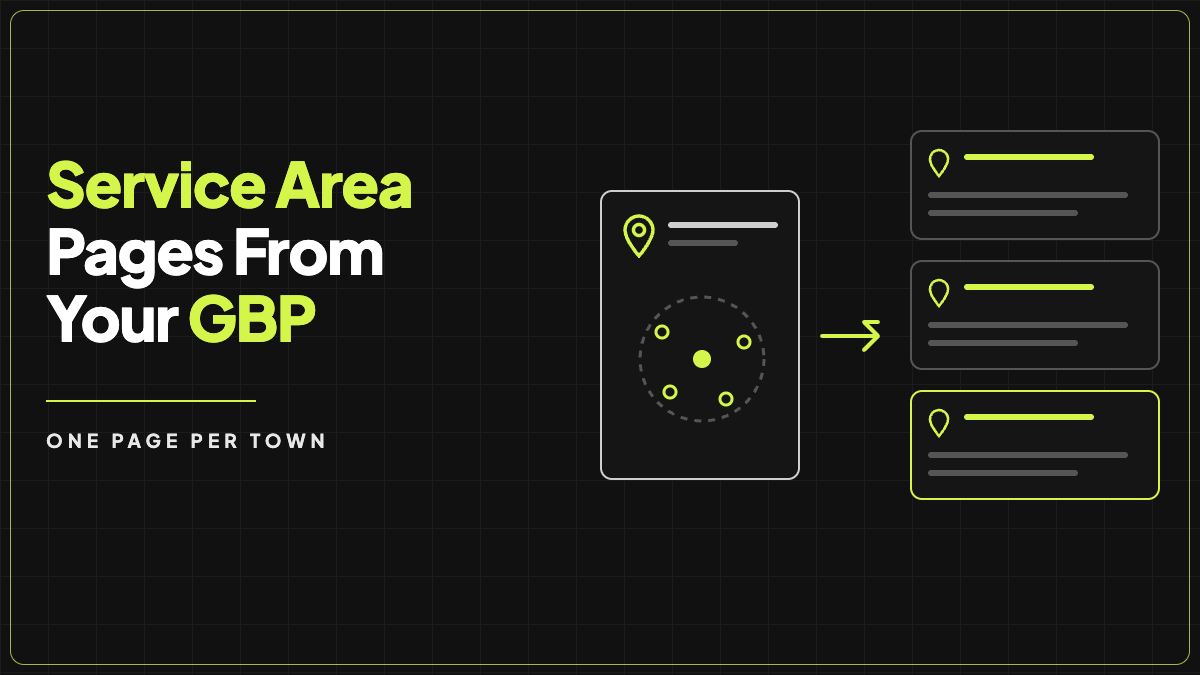
Treat the service areas on your Google Business Profile (GBP) as a shortlist, not a to-do list. Copy the list out, pick the towns where you do real work, and build one page for each. Each page needs its own local content: the services you offer there, real work or reviews from that area, a map, your name, address and phone, and links to your service pages.
The short version:
- Copy your service areas from the profile into a spreadsheet.
- Pick 3 to 5 towns where you have real customers, then add more later.
- Give each page real local content, not the same text with a new city name.
- Link the pages from a service-area hub and from your service pages.
- Add LocalBusiness schema and keep your details the same as the profile.
You can do this by hand in any site builder. 1ClickWebsite builds a page per service area from the profile for you, and you then edit each one. The rest of this post covers both.
Where Service Areas Live in a Google Business Profile
A service-area business (a plumber, roofer, cleaner or electrician who travels to customers) lists the places it serves in its profile. Google's help page on service areas says that the area you set helps people find your profile and shows customers where you can provide your services. It describes areas as cities, postal codes or other areas, and says a business can list up to 20. See Google's service area help page and check it for the current limit before you plan around the number.
Two limits to keep in mind:
- The profile only holds a list. It is a set of place names. It has no room for a description of your work in each town, photos from there, or local questions.
- A profile does not guarantee you show up in each area. Google says local results are based mainly on relevance, distance and prominence (how local ranking works). A page on your site gives you a place to build relevance for a town that your profile address is not close to.
That second point is why service area pages exist. The profile says where you work. The page explains it.
Step 1: Copy Your Service Areas Into a Spreadsheet
Open your profile, find the service area setting, and copy every area into a sheet. Remove any area you do not actually serve. The list should match where you really work, because both the profile and the site should say the same thing.
Add columns for what you will need to decide the next step:
| Area | Services you do there | Jobs done there | Reviews from there | Photos from there |
|---|---|---|---|---|
| Town A | All | Many | Yes | Yes |
| Town B | Two of five | A few | One | No |
| Town C | All | None yet | No | No |
Step 2: Pick Which Towns Get a Page
You do not need a page for every area on the profile. A page is worth building when you can fill it with something true and specific. Good signs:
- You already do regular work there. You have photos, job notes, and a customer or two who will let you quote them.
- There is demand. If Google Search Console already shows searches for your service plus that town, a page can capture more of them.
- It is a real market. A town or city is a page. A cluster of small neighboring towns can share one page, and ZIP codes usually do not need their own.
Start with the top few towns, publish them, and add more once those are indexed and getting traffic. Skip the towns where all you could write is "we serve [town]."
Step 3: Build a Hub and One Page Per Town
A simple structure works for most sites:
/service-areas/              (hub: lists every area you serve)
/service-areas/town-a/       (one page per town)
/service-areas/town-b/
/services/drain-cleaning/    (your normal service pages)
The hub page lists the areas, links to each town page, and links to your main service pages. Link the hub from your main menu or footer. Use normal links with plain link text, like "Drain cleaning in Town A," so people and search engines can follow them.
What a Good Service Area Page Contains
Here is the checklist. The page works when someone in that town can tell it was written for them.
- A title and heading that name the service and the town, for example "Plumber in Town A".
- A short local introduction. What you do there, and that you travel to that area from your base.
- The services you offer there, each linking to its own service page.
- Proof from that area. A real job with a photo, and a review from a customer there if you have one. Only show reviews you have the right to show, and do not change the wording.
- Local details that are true. Common problems for homes in that area, response times, travel limits, or permit rules you actually deal with.
- Questions people there ask, answered briefly.
- A map of the area or an embedded Google Map.
- Your name, address and phone number written exactly as they are on your profile.
- A call button and a form near the top and the bottom.
- Links back to the hub, to the relevant service pages, and to a neighboring town page when it helps the reader.
- LocalBusiness schema. Google documents the markup in its local business structured data guide. Check with its testing tools after you add it.
Do not invent an address for a town where you have no office. If you serve a town from your home base, say so plainly.
Doorway Pages: The Risk of Doing This Wrong
The fastest way to build service area pages is also the fastest way to get them ignored. If you duplicate one page 20 times and swap the town name, you have what Google calls doorway abuse. Google's spam policies describe doorway pages as sites or pages created to rank for specific searches that lead people to similar pages instead of a clear, useful destination.
A quick test: remove the town name from the page. If it could be pasted onto any of your other town pages without changes, it is too thin. Add real local content, or merge that town into a broader page.
Two more rules that keep you safe:
- Fewer, better pages beat more, thinner pages. Twenty areas on your profile does not mean twenty pages on your site.
- A page is not a ranking promise. A town page helps a search for that town. It does not move your Maps ranking on its own.
Whitespark has a long guide to service area landing pages if you want a deeper checklist of elements to add.
By Hand or With a Builder
You have two realistic ways to produce the pages.
Doing it by hand
Open your site builder (WordPress, Wix, Squarespace, or similar), create a template page, and fill it in for each town. You control every word. It also means writing every page, adding schema yourself, and keeping town pages in step with the profile when something changes. This is a fine approach for three to five towns. At twenty, the work adds up.
Using a builder that reads the profile
1ClickWebsite starts from the profile. You enter the business name, pick a template, and confirm what it found: address, hours, services, service areas and reviews. It suggests a page for each service and each area. You can remove anything that does not fit before it builds. About three minutes later the site has a page for every service area, with the business's Google reviews added and a contact page with lead forms. The full walkthrough is in How to Turn Any Google Business Profile Into a Website in About 3 Minutes.
That gets you the structure fast. The local detail is still on you, and it should be. After the build:
- Open Service Areas in the WordPress admin sidebar, choose an area, and edit the name, description and content under OCF Fields. You can set a Service Area Image for the main picture.
- Or ask the Website Agent in plain words. The 1ClickWebsite guide to editing service and service area pages gives examples like "Add service area pages for Folsom and Roseville."
- Replace stock images with photos from real jobs in that town.
The site is built once from the profile. If your service areas change later, update the profile and the site both.
If you are choosing between options for the whole site, not only the area pages, see How to Turn Your GBP Into a Website for the full comparison.
Pro tip: build demo sites for a whole lead list
If you pitch several businesses a week, you do not have to build demos one at a time. Mini Sites in the 1ClickWebsite dashboard sidebar builds a one-page demo site for every business on a list.
- Up to 500 businesses per batch.
- Upload a CSV of businesses from your lead source.
business_nameis required. Optional columns arephone,email,address,logo_urlandprimary_color. - One industry per batch.
- It costs one Mini Site credit per business, plus 5 once for an industry without saved photos.
Send each owner the link to their demo, then build the full site, with its service area pages, for the ones who reply. It also runs from Claude, ChatGPT or Cursor through the MCP server. See the Mini Sites batch guide and the API docs.
Related GBP Guides
FAQ
How many service area pages should I make?
Start with three to five towns where you have real work, reviews or search demand. Add more after those are indexed and getting traffic. Having 20 areas on your profile does not mean you need 20 pages.
Do I need a separate page for every ZIP code?
Usually not. Group nearby small towns or ZIP codes on one page, or cover them on your hub page. Build a separate page only when you have something specific to say about that place.
Will a service area page get me into the Google Maps pack for that town?
Not by itself. Google says local results depend mainly on relevance, distance and prominence. A page helps your website rank for searches that include the town, and it supports relevance. It does not change the distance from your profile address.
Can I use the same page for every town if I change the city name?
No. That is the pattern Google's spam policies call doorway abuse. Each page needs content that is true and specific to that area, or it should be merged into a broader page.
Should I put an address on each town page?
Only if you have a real, staffed location there. Otherwise keep your real details as they appear on your profile and say plainly that you travel to that town from your base.
Can I edit the service area pages after they are built?
Yes. On a 1ClickWebsite site you can edit each area in WordPress under Service Areas, or describe the change to the Website Agent. See the service pages guide.
Sources and Review Notes
This post was informed by an LLM Sleuth research run on 2026-11-08; product claims were checked against the pages below and the 1ClickWebsite guides. Google's limits and policies change, so check the current pages before you plan around them, and verify any pricing or credit costs on the product pages.
- Google Business Profile Help: Add or edit your service area
- Google Business Profile Help: Improve your local ranking
- Google Search Central: Spam policies (doorway abuse)
- Google Search Central: Local business structured data
- Whitespark: Guide to the perfect service area landing page
- 1ClickWebsite: Edit service and service area pages
- 1ClickWebsite: Turn any Google Business Profile into a website
- 1ClickWebsite: Mini Sites batch guide