Edit service and service area pages
Update the name, text and images on each service and service area page.
Easiest way: ask the agent
Open the Website Agent, pick your site and describe the change. It can rewrite a page, swap images, or add new services and areas.
- "Rewrite the Drain Cleaning page to mention same-day service."
- "Add a new service called Water Heater Repair with its own page."
- "Add service area pages for Folsom and Roseville."
- "Change the main image on the Roof Repair page to this one: [attach image]"
Prefer Claude, ChatGPT or Cursor? You can connect your own AI and ask it the same things.
Before you start
Services and service areas work the same way. Only the menu name is different. You need access to your site's WordPress admin.
Do it yourself in WordPress
-
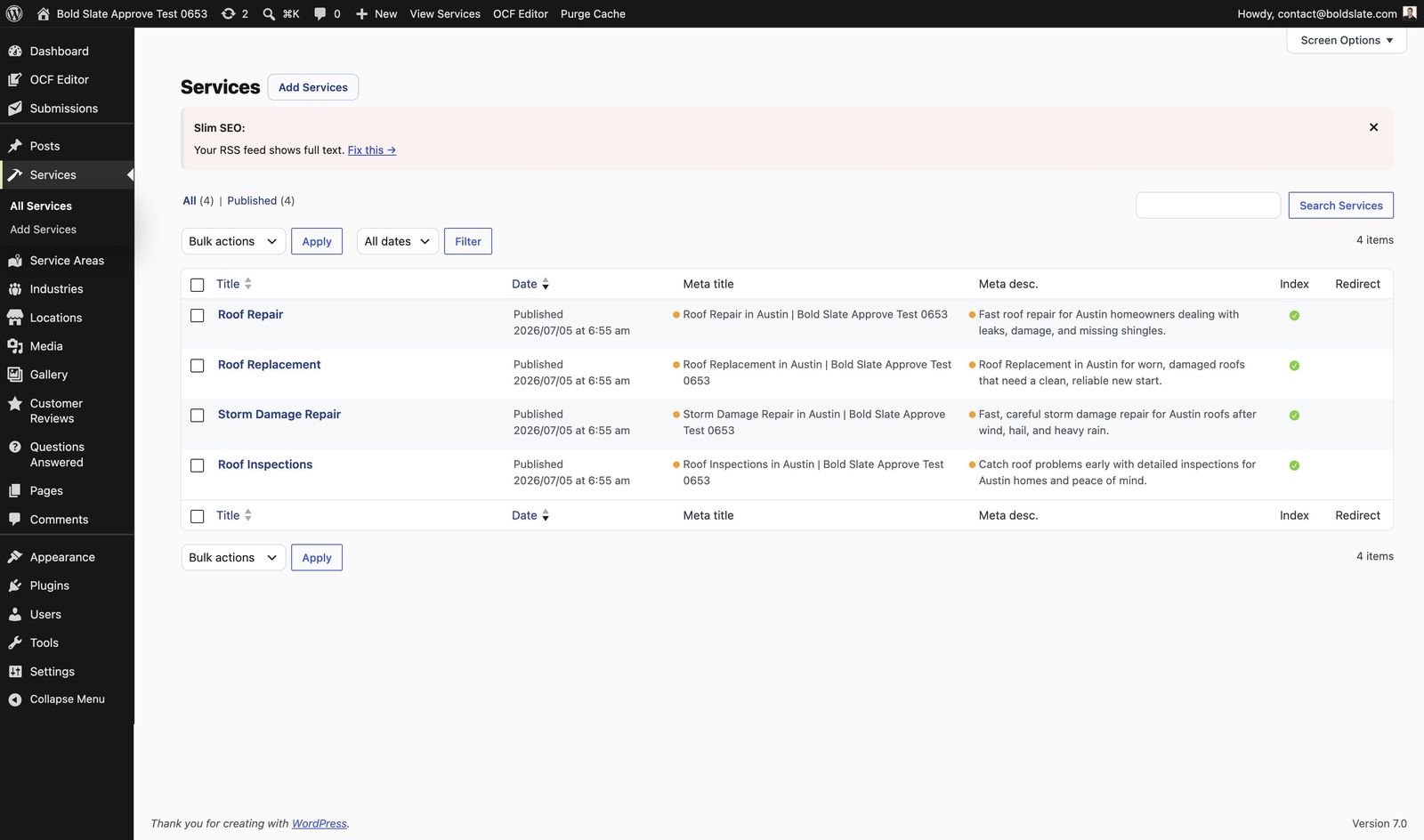
Open the list In WordPress admin, click Services or Service Areas in the sidebar.
-
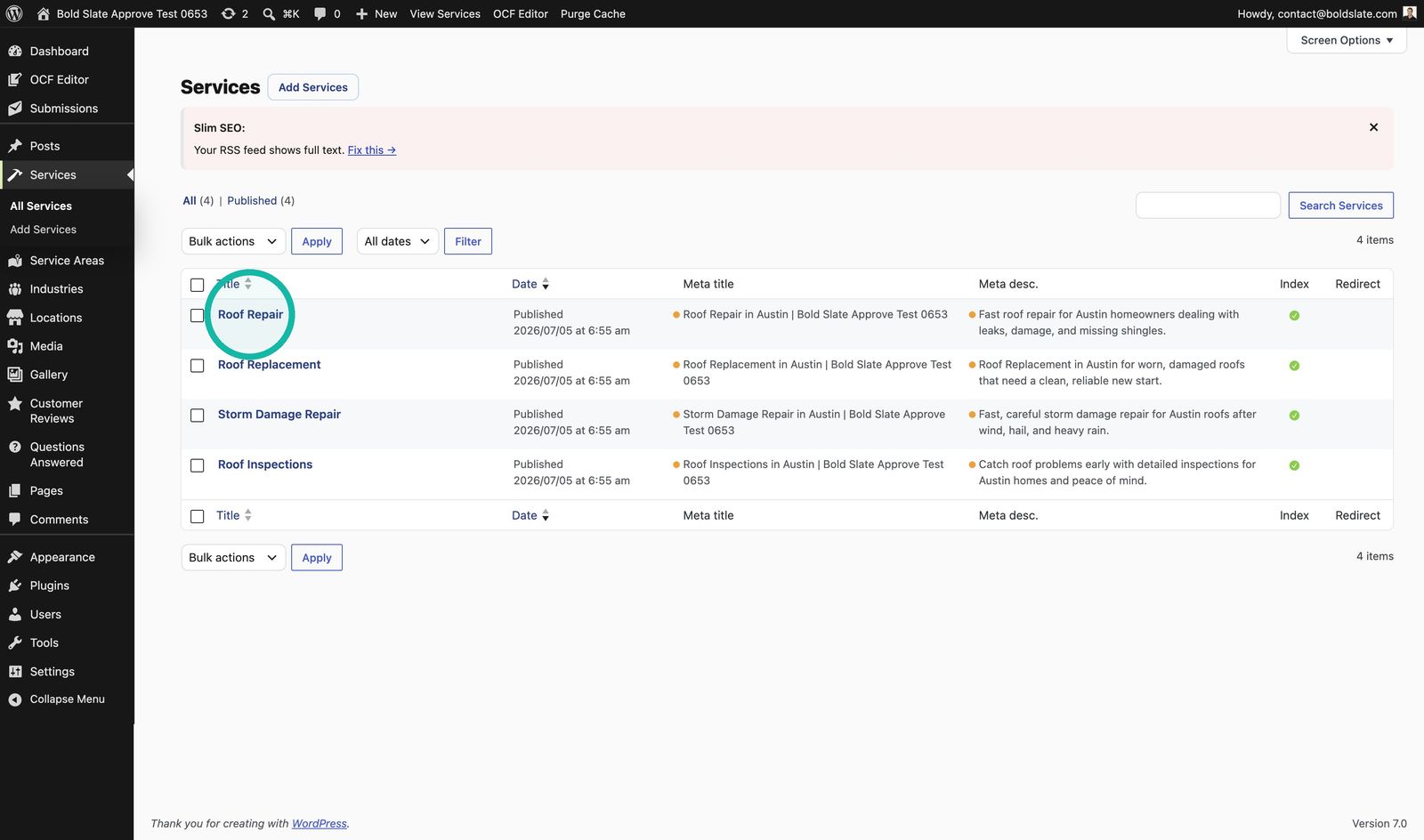
Choose the item Click the service or service area you want to edit.
-
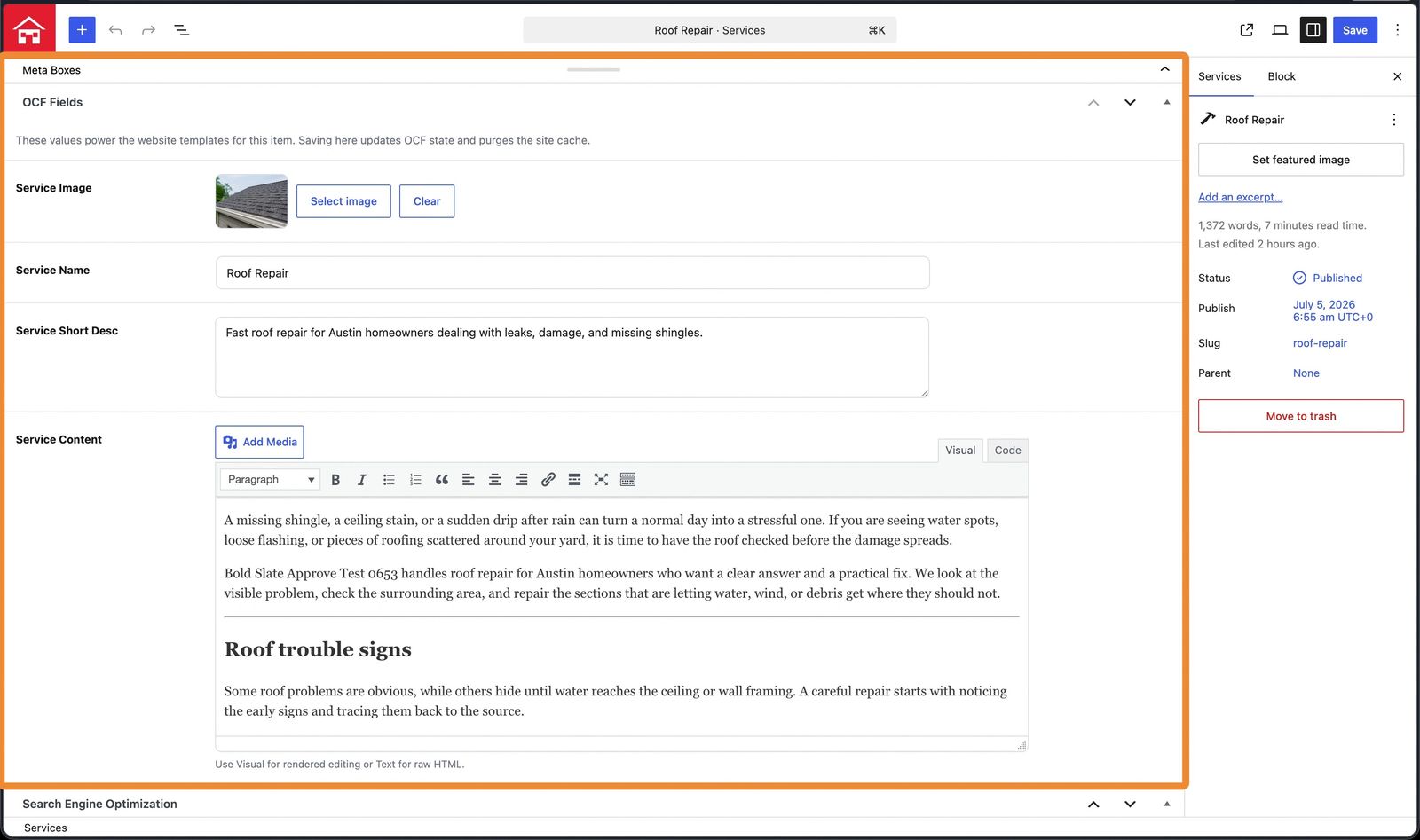
Update the fields Find OCF Fields on the edit screen and change the name, description or content. To change the main image, use Service Image or Service Area Image. To add images inside the text, use the content field.
-
Save Click Save, then open the page to check it.
Good to know: to edit a section on a regular page, use the OCF visual editor. Service names, descriptions and area content are edited here in WordPress.
Troubleshooting
- A field is missing or a save error appears: chat with us and include your site URL and the page name.
Still stuck?
Chat with us and we'll reply right here, usually in a few minutes.