Migrate your WordPress site
Move your site to any WordPress host with the free Migrate Guru plugin.
Before you start
You need WordPress admin access for your current site and for the new WordPress install on your new host.
Take a backup first. If your domain is already live, don't point it at the new host until the moved site looks right.
Install Migrate Guru on the new site
Migrate Guru is already active on your 1ClickWebsite site. It also needs to be on the site you're moving to. Some hosts install it for you, so if you already see Migrate Guru in the new site's sidebar, skip to the next section.
-
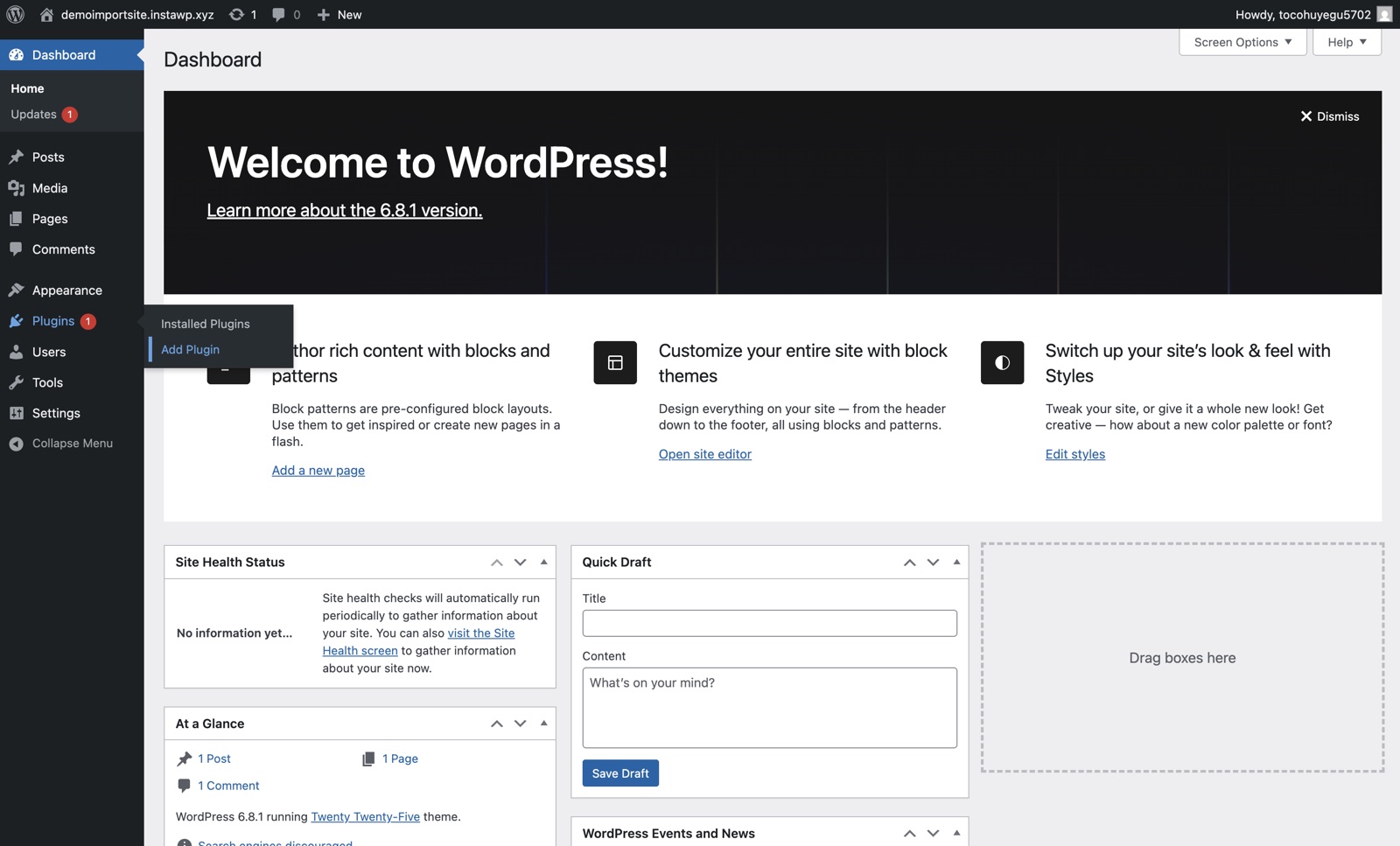
Open Add Plugin on the new site Log in to WP Admin on the new site and go to Plugins > Add Plugin.
-
Search for it Type
migrate guruin the search box.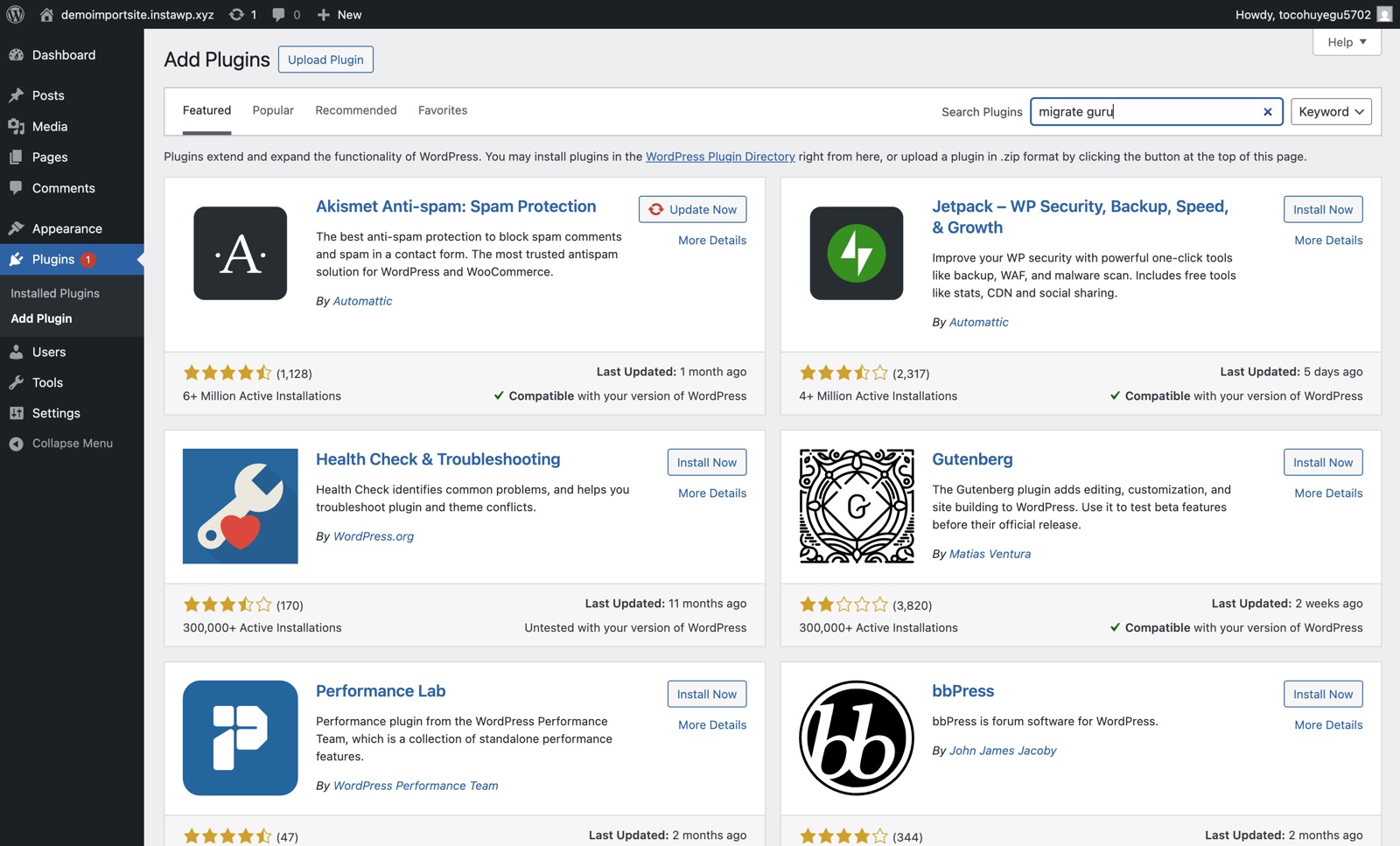
-
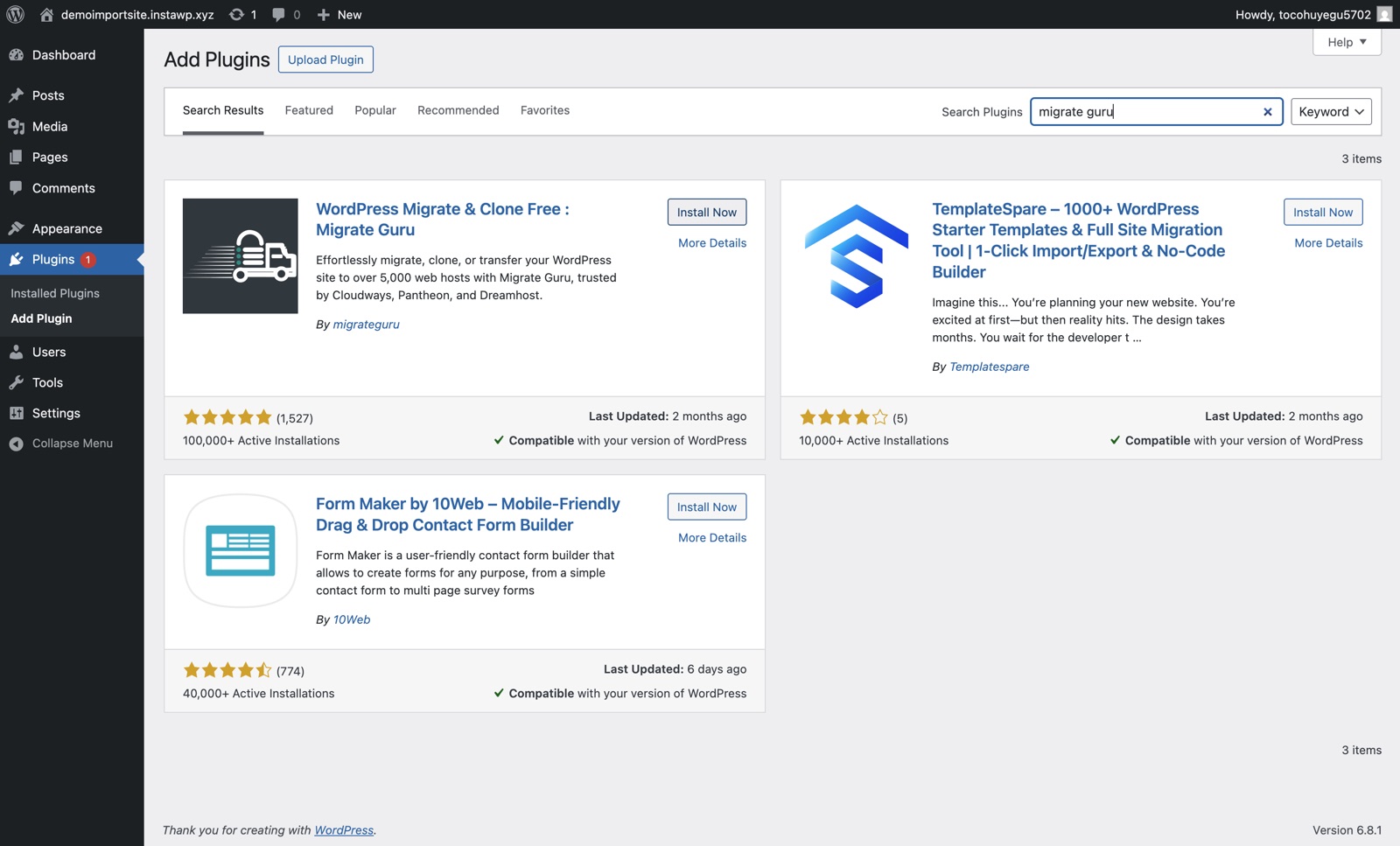
Install and activate Click Install Now, then Activate.
Start the move from your 1ClickWebsite site
-
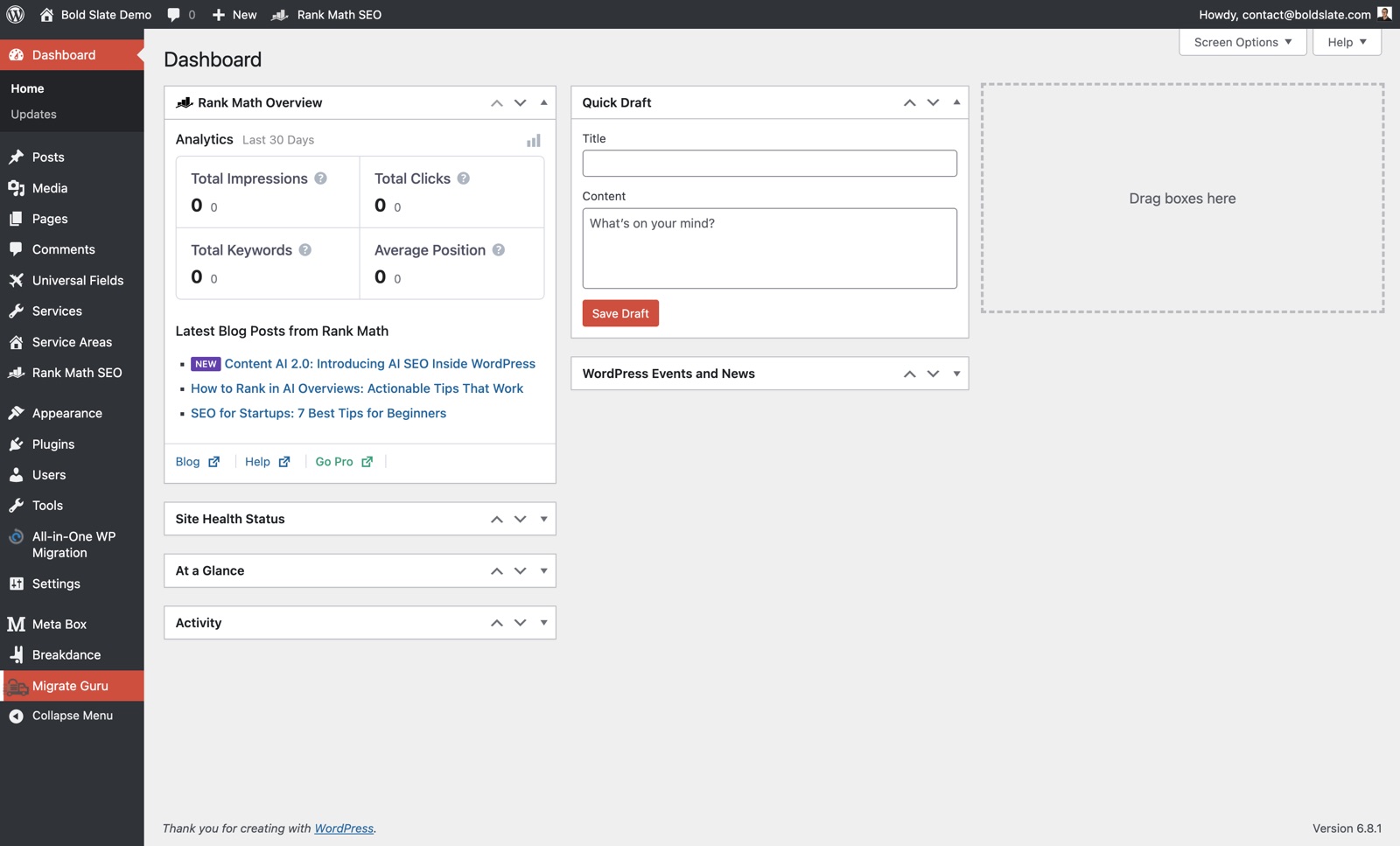
Open Migrate Guru In WP Admin on your 1ClickWebsite site, click Migrate Guru in the sidebar. It's already installed there, so there's nothing to add.
-
Enter your email Type your email address.
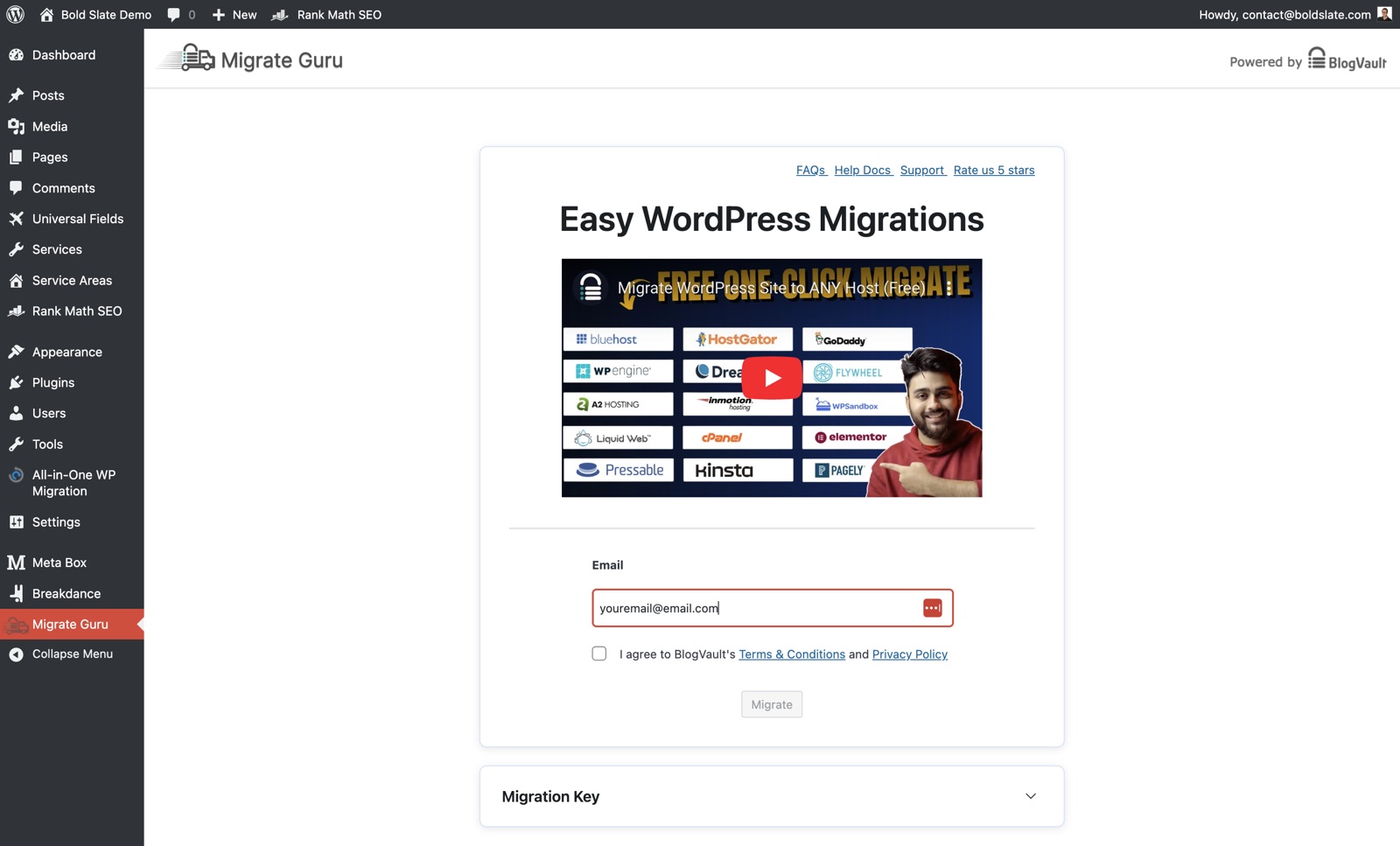
-
Accept the terms Tick the box to agree to BlogVault's Terms & Conditions and Privacy Policy.
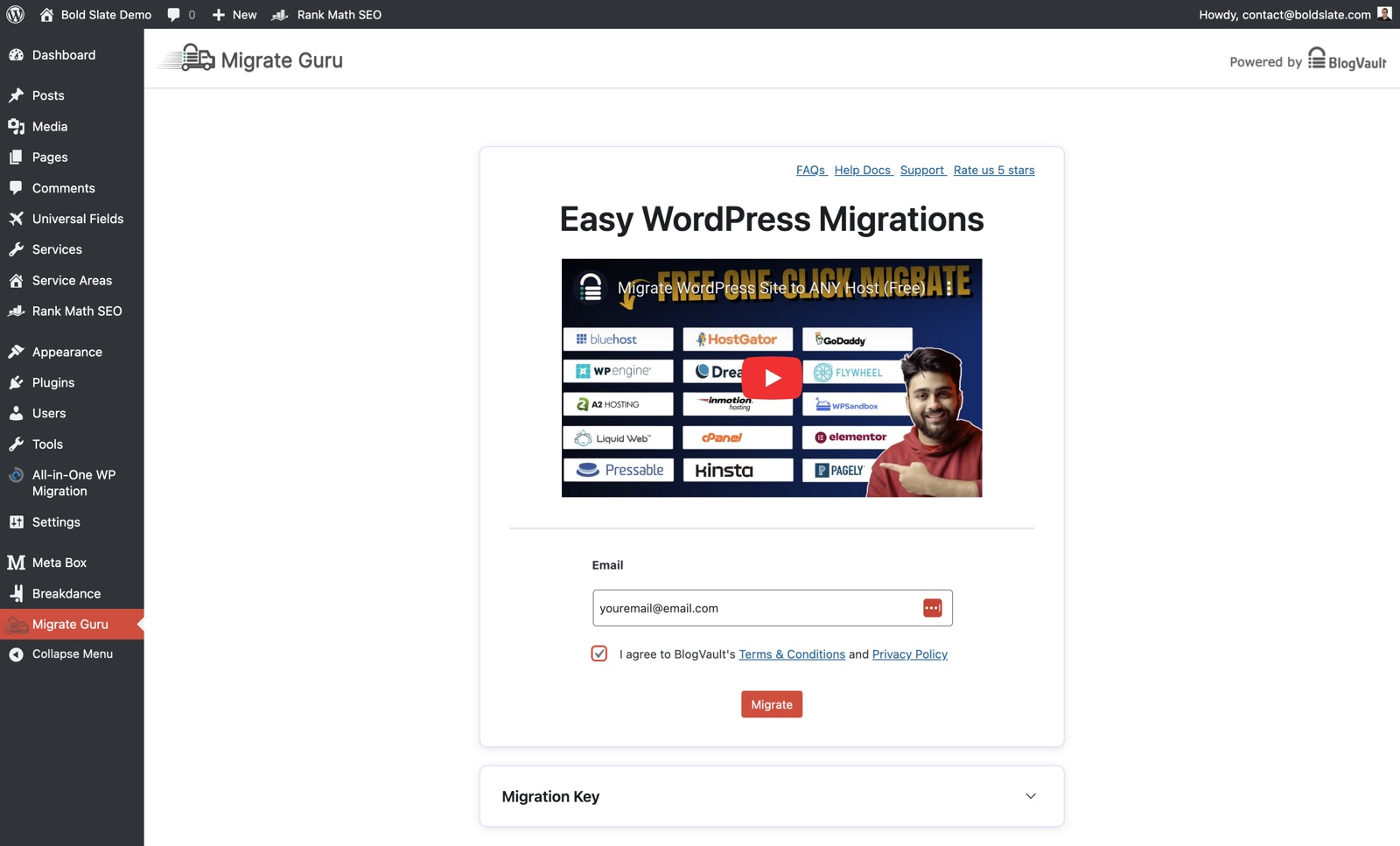
-
Click Migrate Click Migrate.
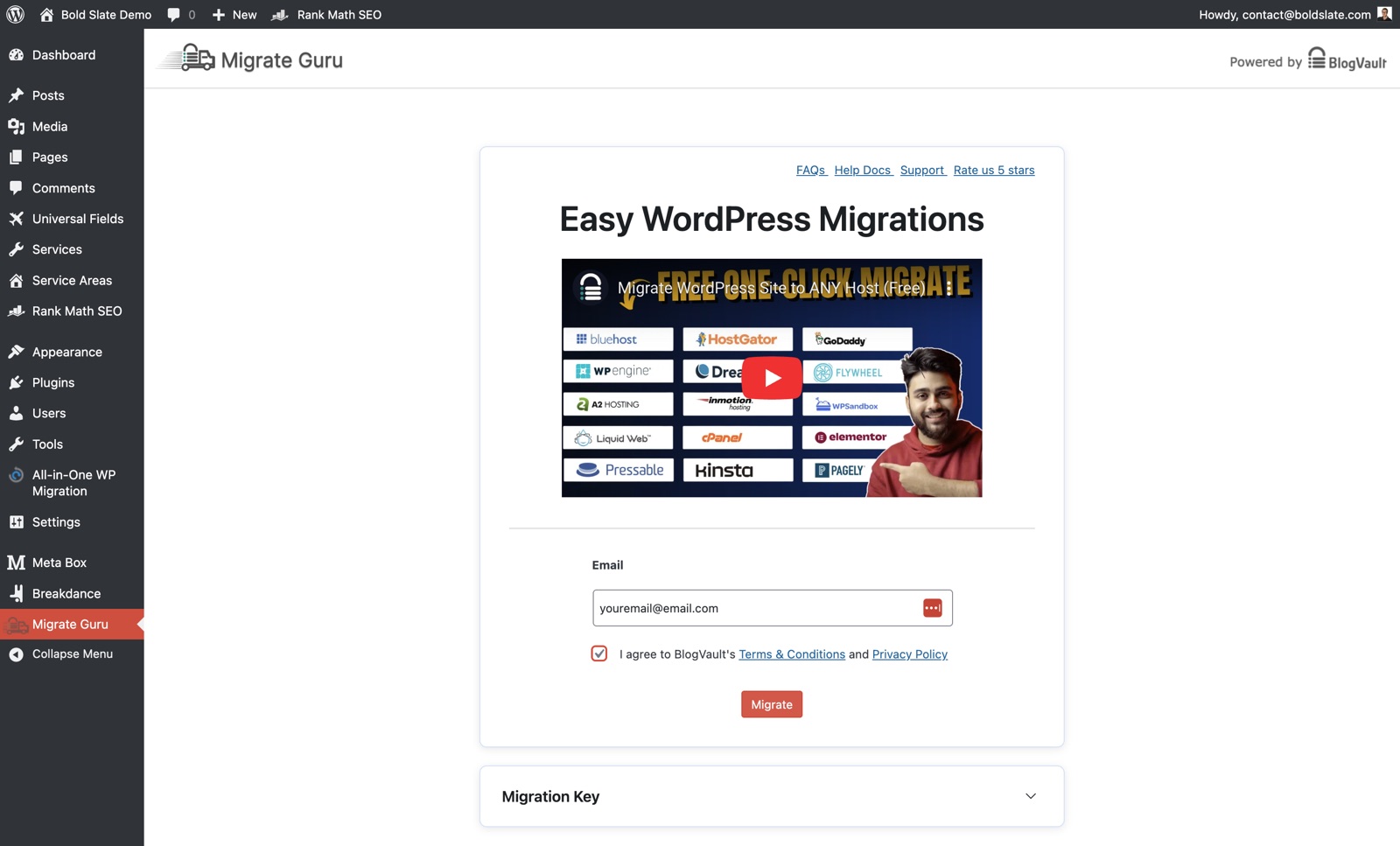
-
Pick your host Click your hosting provider, or click Other Hosts. Other Hosts is the easiest option.
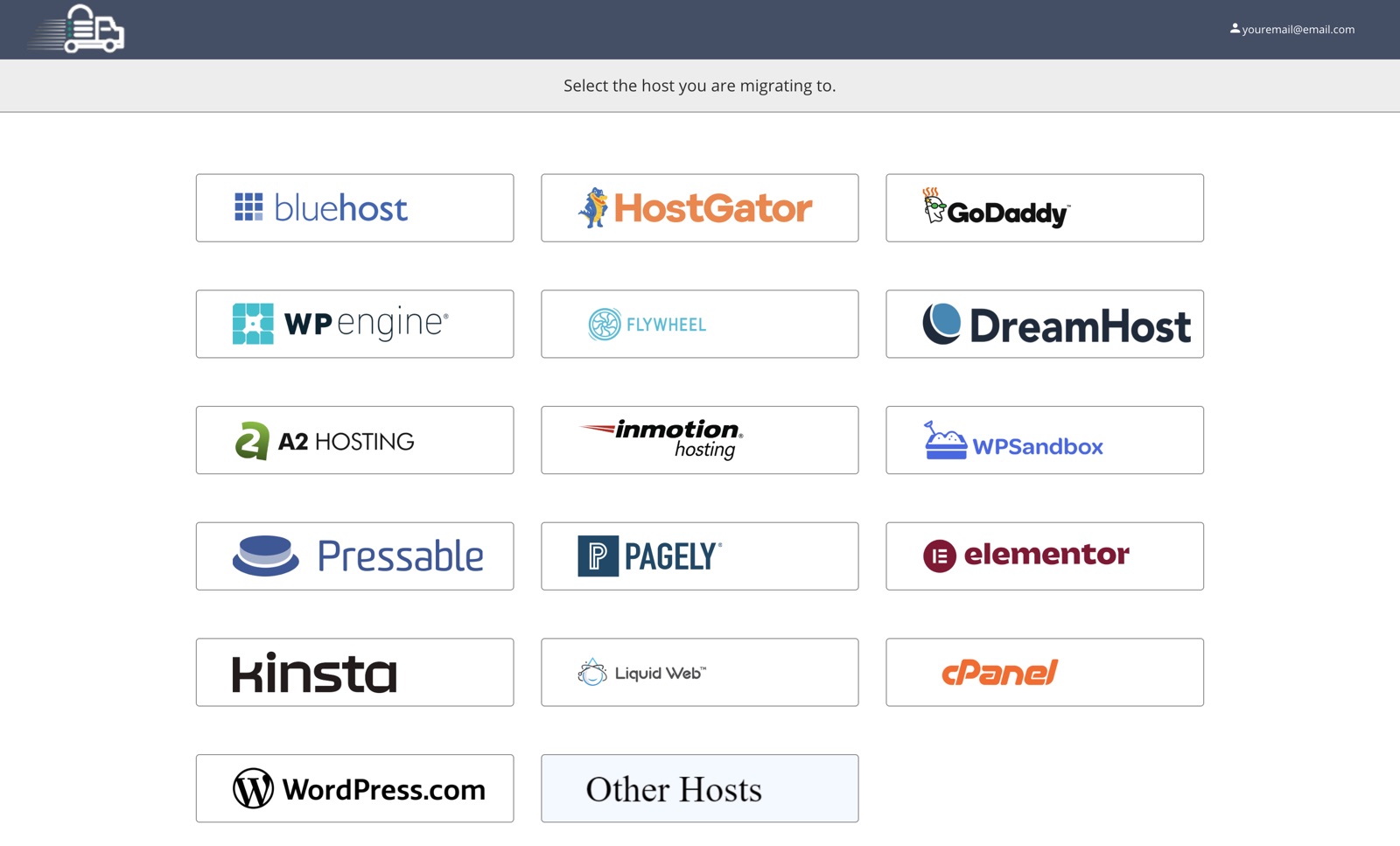
-
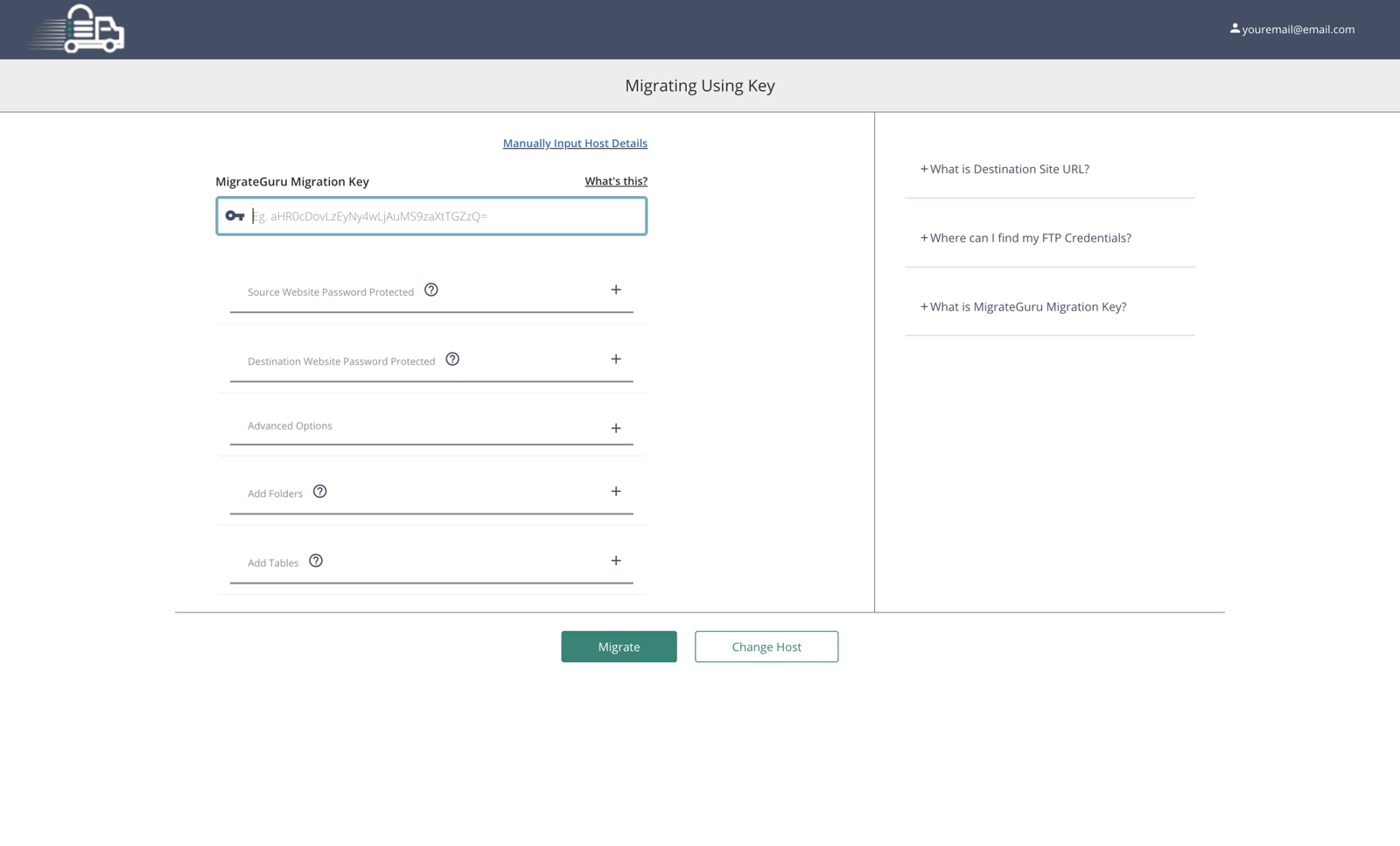
Get ready for the key Next you'll paste a migration key from the new site.
Copy the key from the new site
-
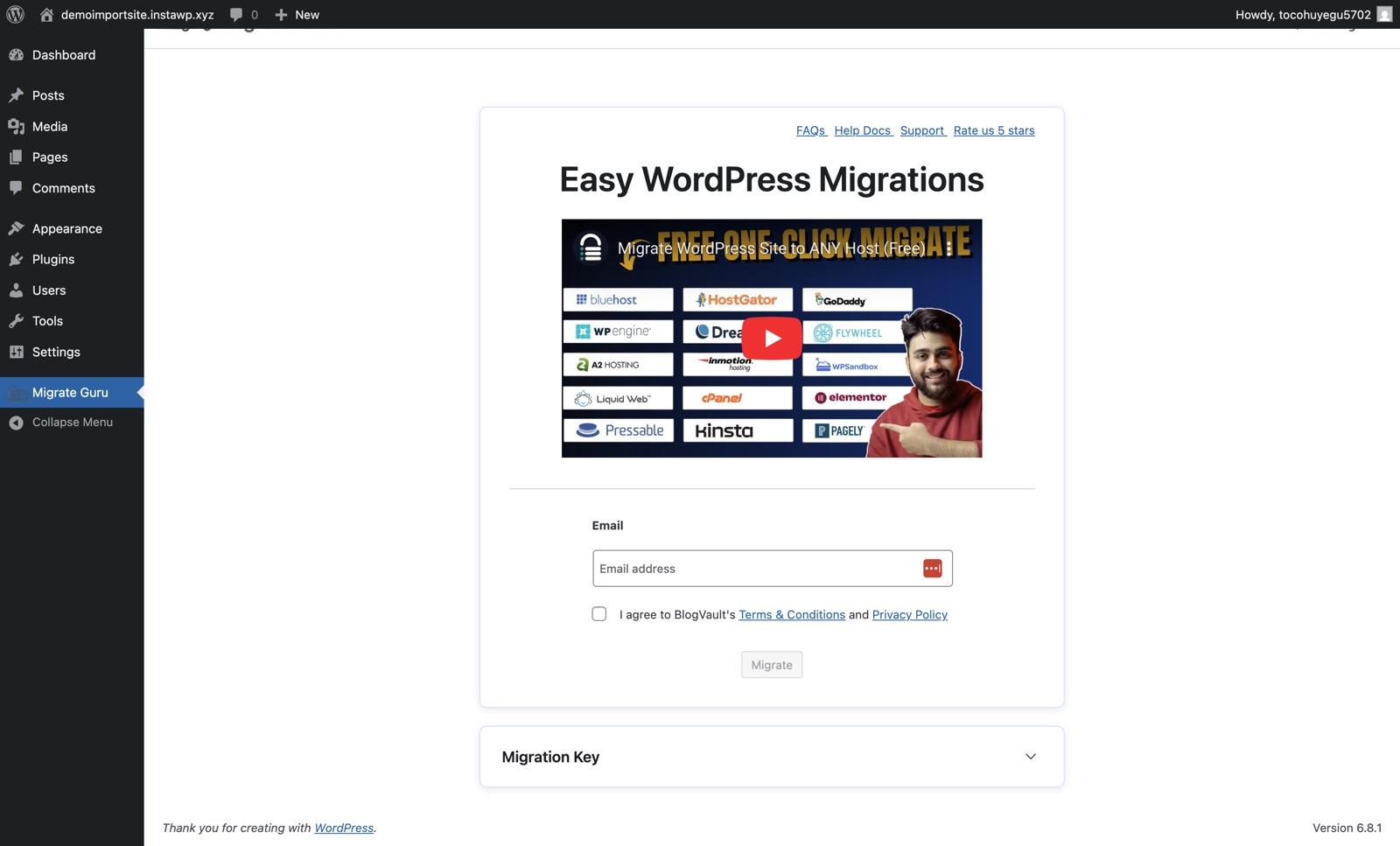
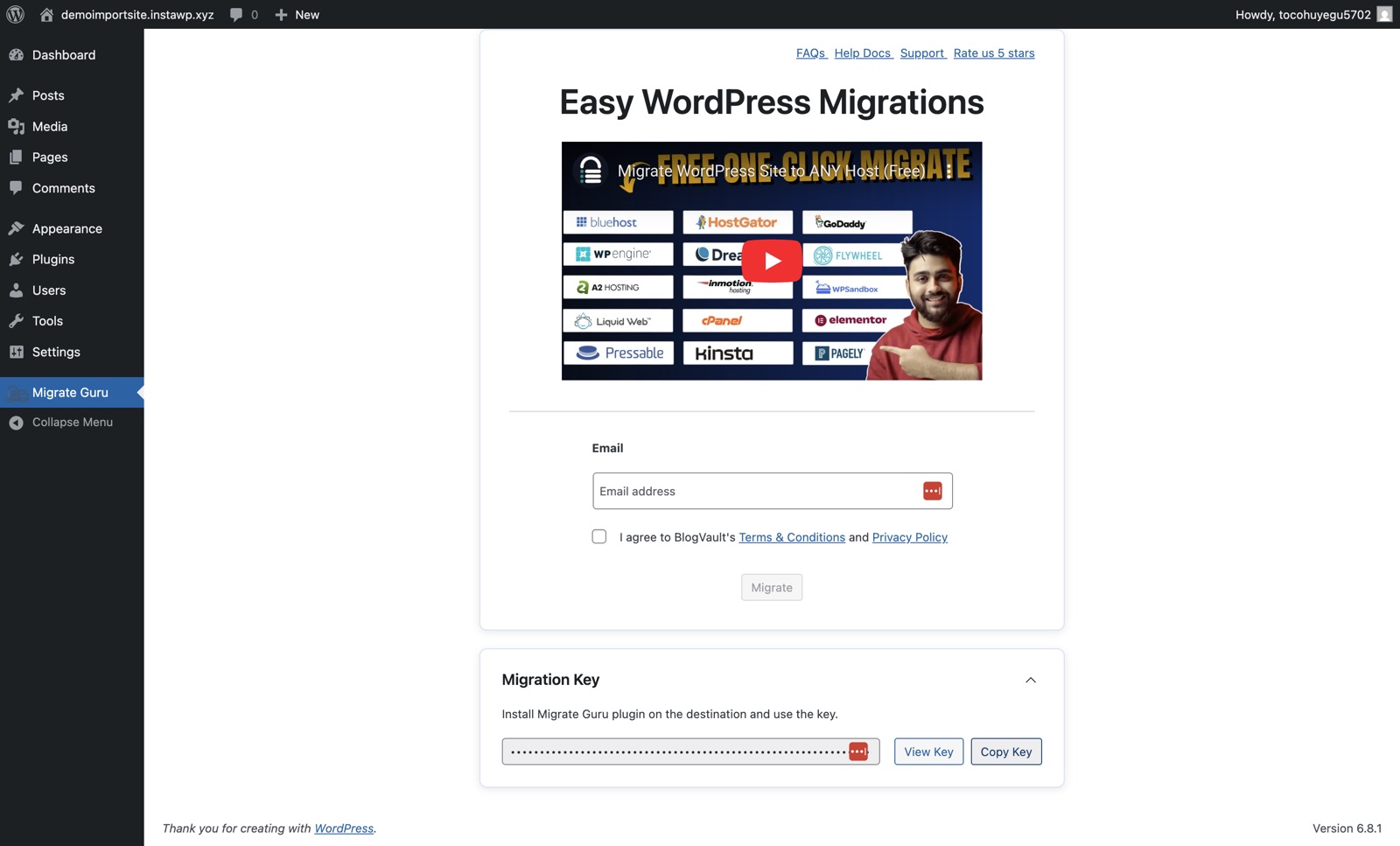
Open the Migration Key Go back to Migrate Guru on the new site and click the expand button next to Migration Key.
-
Copy it Click Copy Key.
Finish the move
-
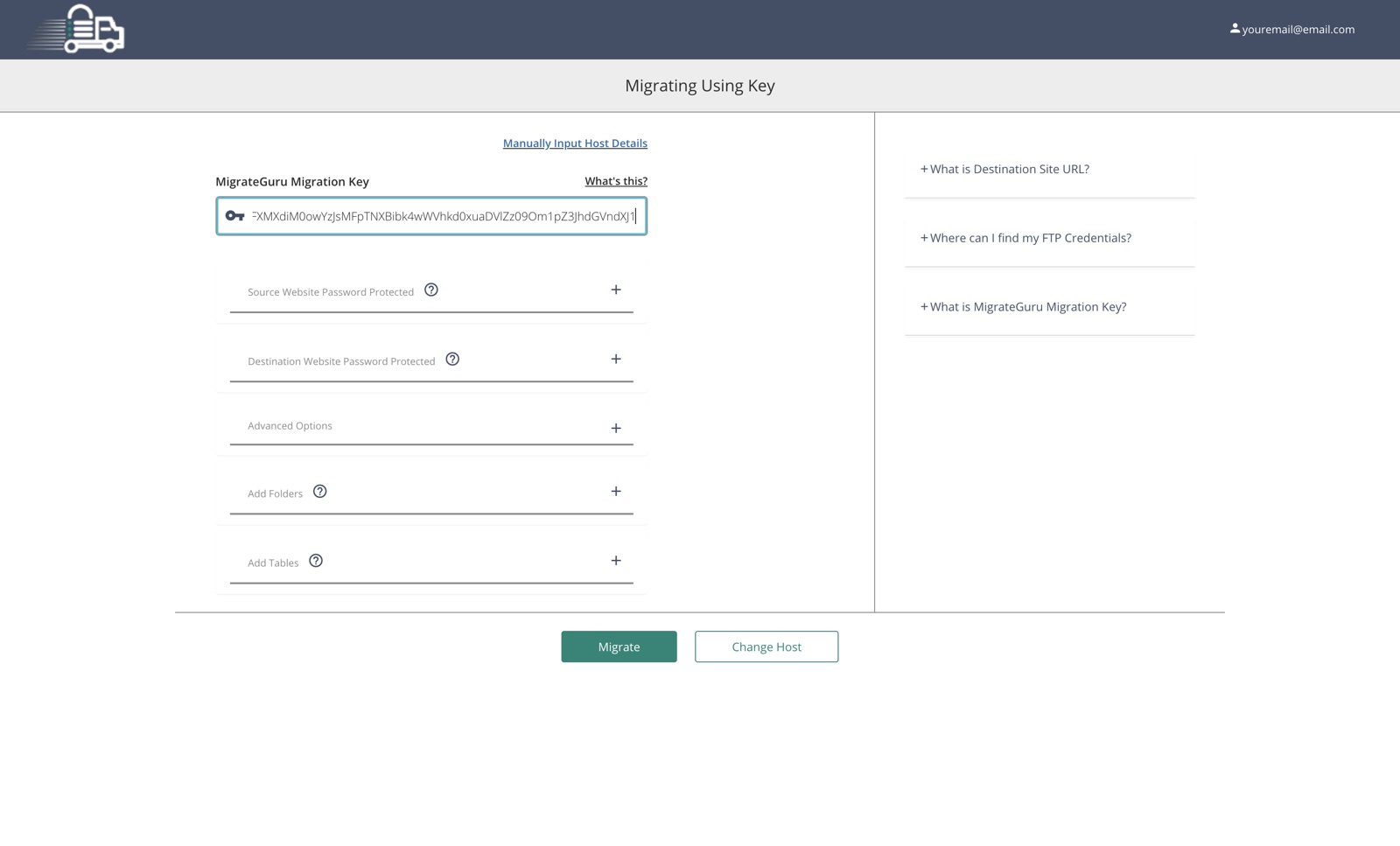
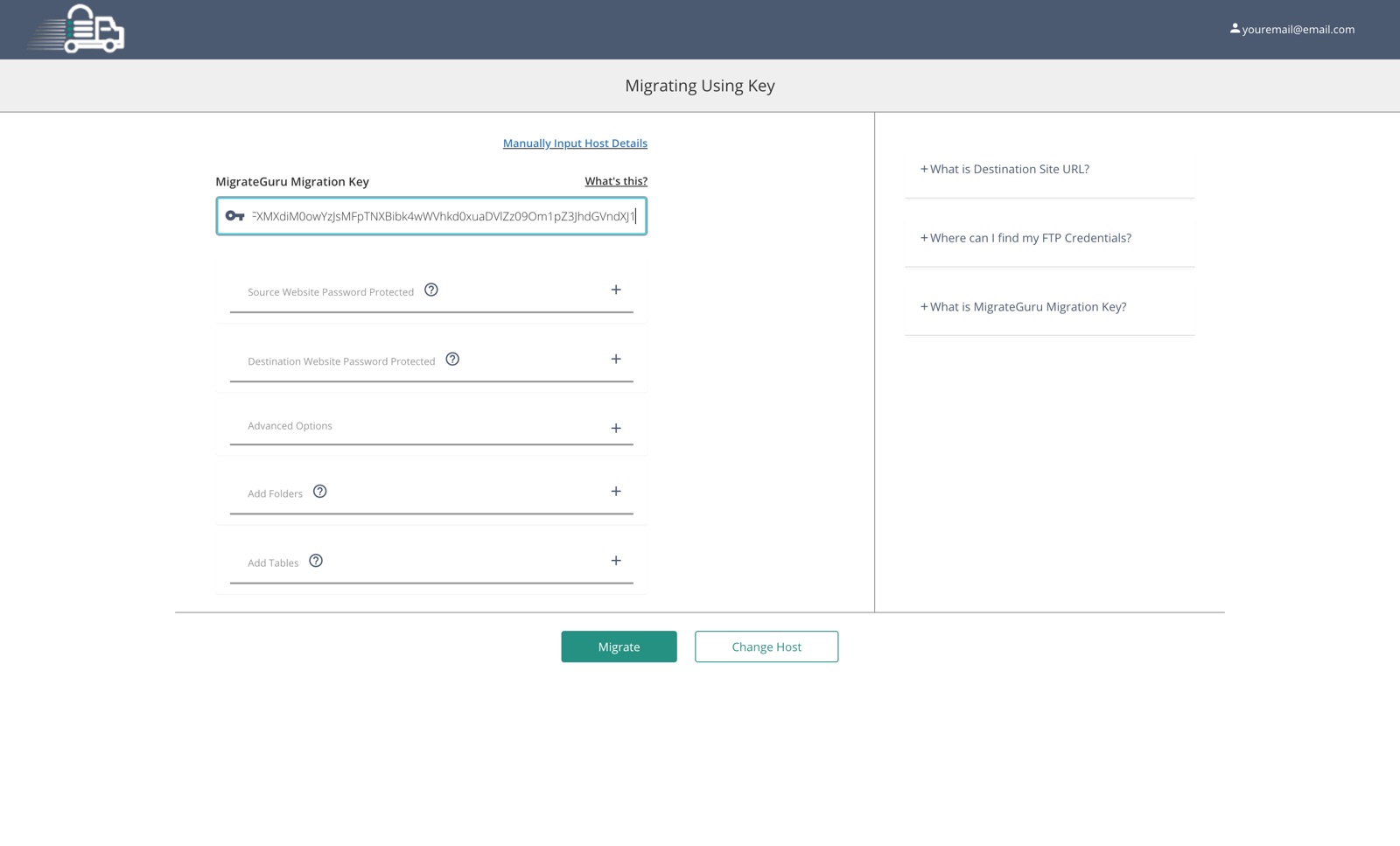
Paste the key Back on your 1ClickWebsite site, paste the key into the Migration Key field.
-
Click Migrate Click Migrate and wait for it to finish.
-
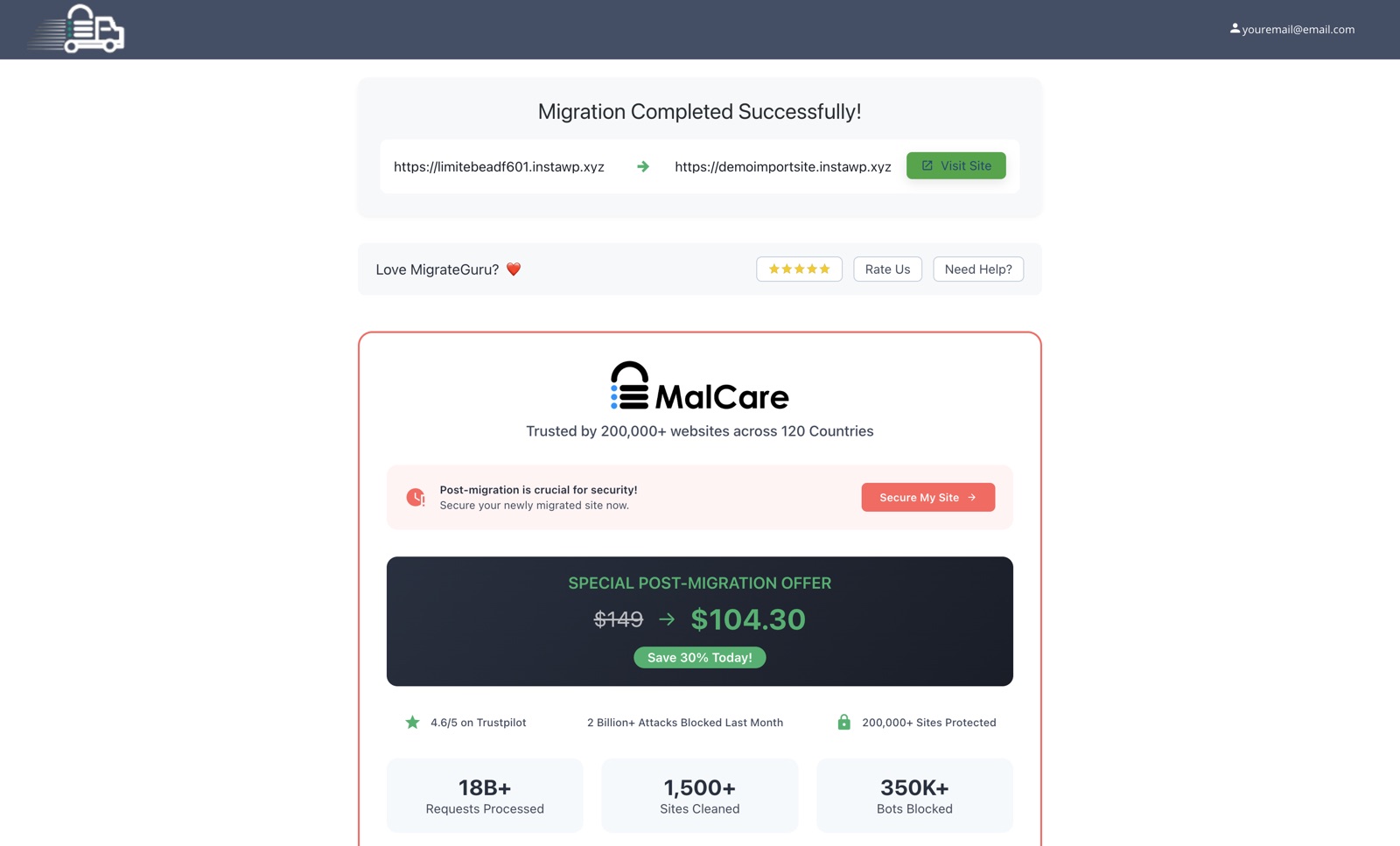
Check the new site When it's done, click Visit Site or refresh the new site. Check your key pages, images, forms, menus and links.
-
Switch your domain Update your DNS only after the new site looks right.
Good to know: screens vary a little by host, but the Migrate Guru steps are the same everywhere.
After you move
- Check the basics: WordPress URLs, permalinks, SSL, forms and email sending.
- Set up email: sites off our hosting need their own SMTP. See Set up SMTP with FluentSMTP.
- Keep using the agent: update your domain in the dashboard first. See Use the Website Agent with a migrated site.
Troubleshooting
- Migration failed or the site is broken: chat with us or your new host and include both site URLs.
- Domain shows the old site: DNS can take a few hours to update. Check your records with your domain provider.
Still stuck?
Chat with us and we'll reply right here, usually in a few minutes.