Update your site tagline and favicon
Set the short site tagline and the icon that shows in browser tabs.
Easiest way: ask the agent
Open the Website Agent, pick your site, attach a square image and ask it to set the favicon.
- "Use this image as the site favicon: [attach image]"
Prefer Claude, ChatGPT or Cursor? You can connect your own AI and ask it the same things.
Before you start
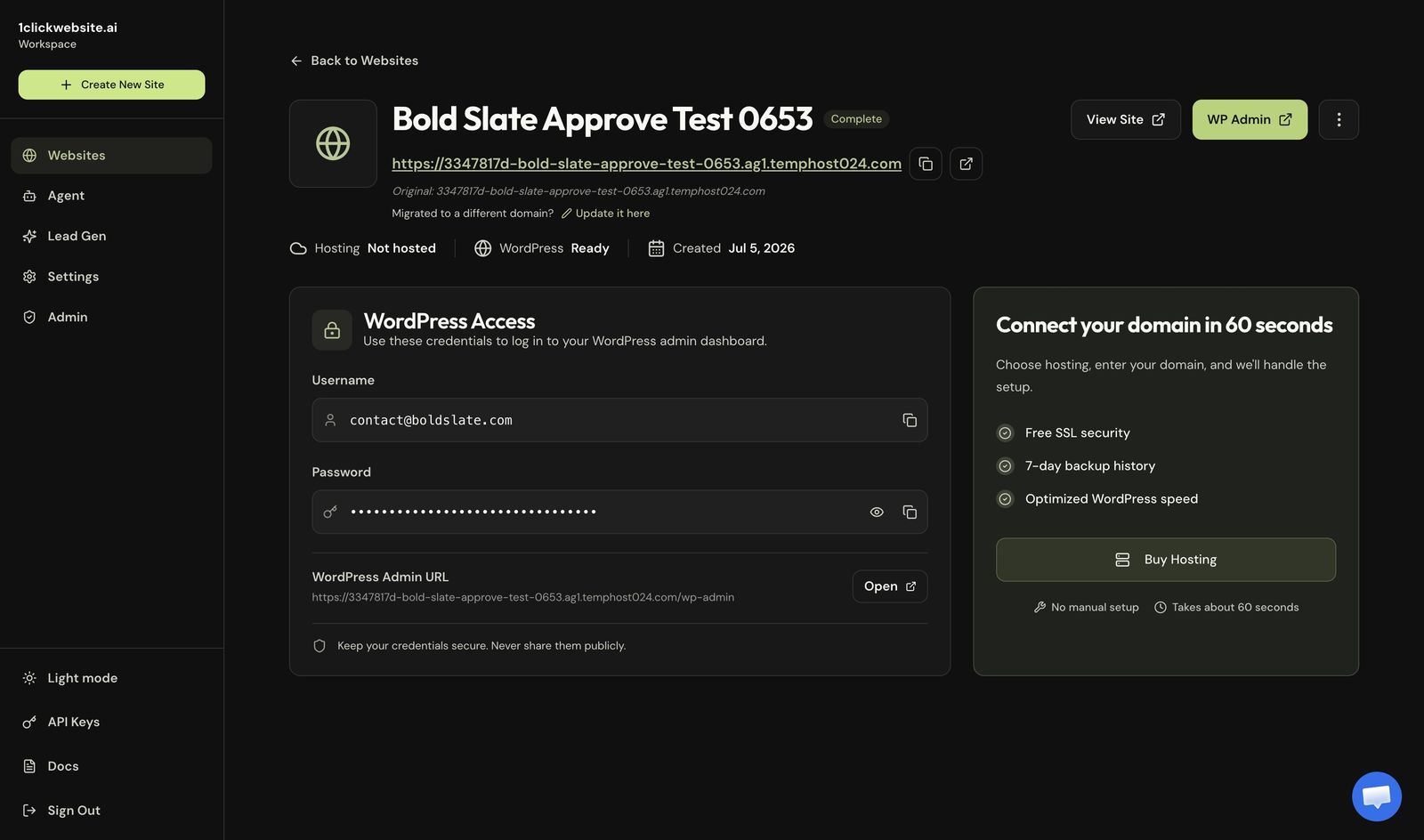
Open your site in the 1ClickWebsite dashboard and copy the WordPress admin password if you need it.
For the favicon, use a square PNG or JPG at least 512 by 512 pixels.
Do it yourself in WordPress
-
Open your site details Open the site in your dashboard and copy the WordPress password if needed.
-
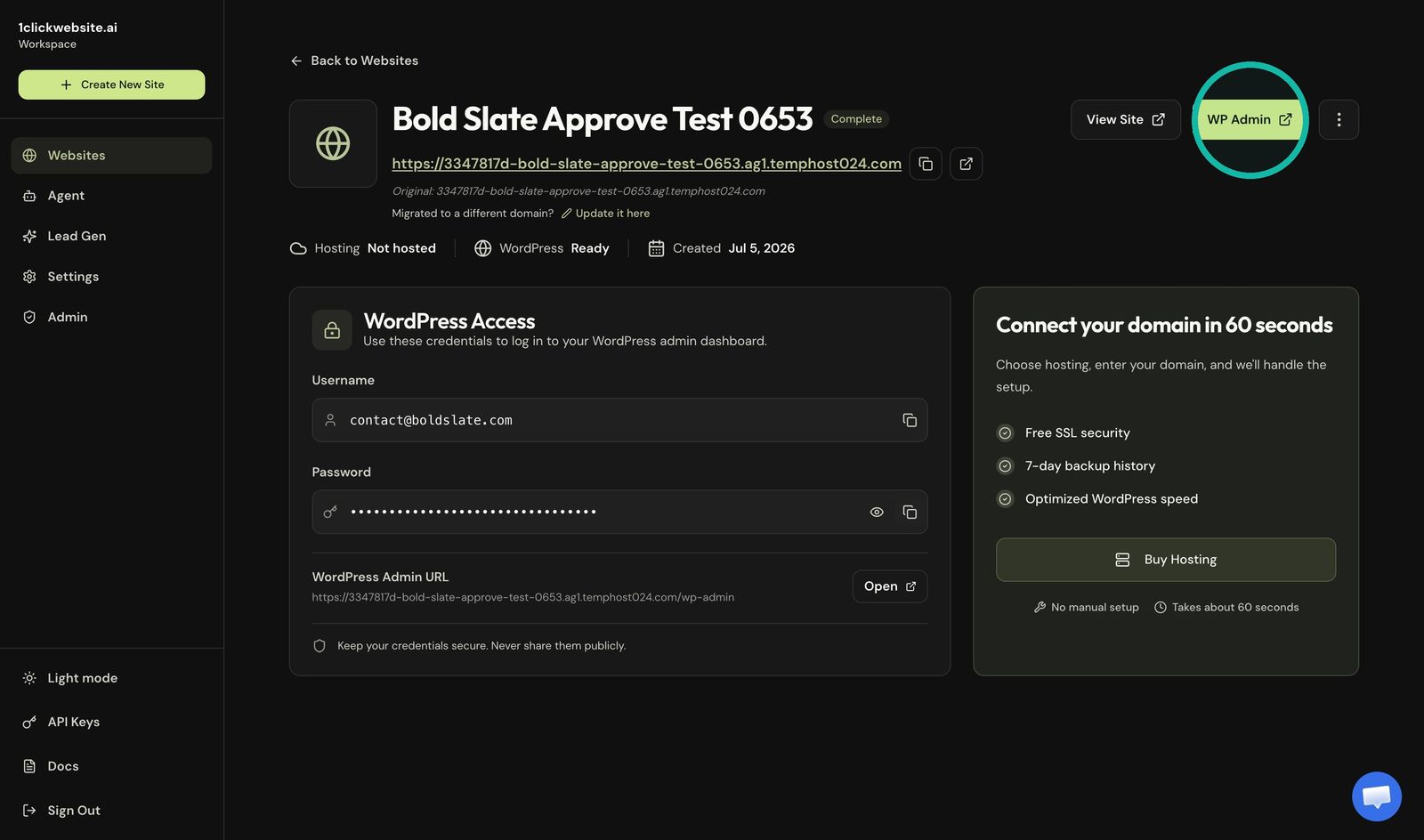
Open WordPress admin Click WP Admin and log in.
-
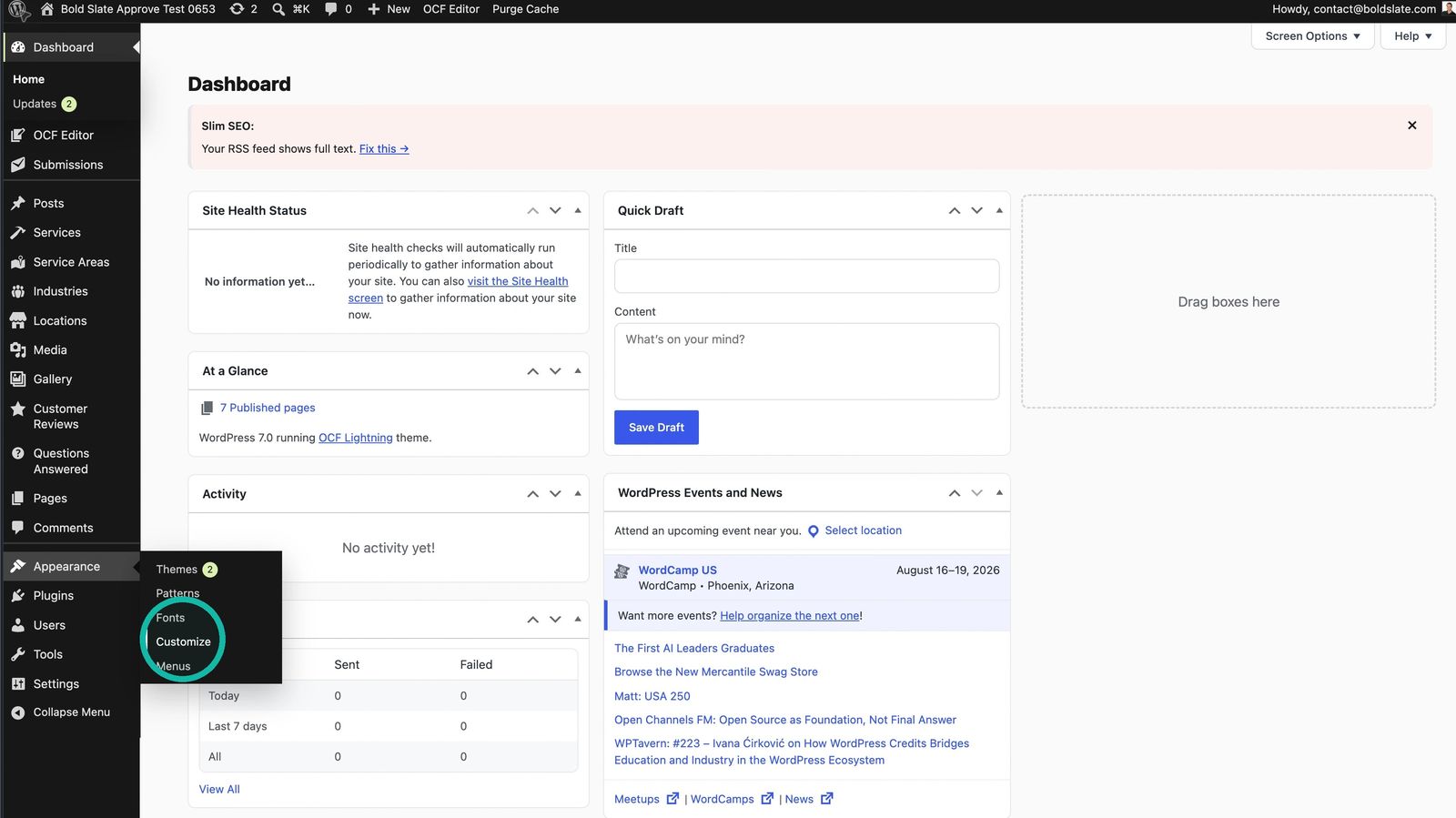
Open the Customizer Hover over Appearance in the sidebar, then click Customize.
-
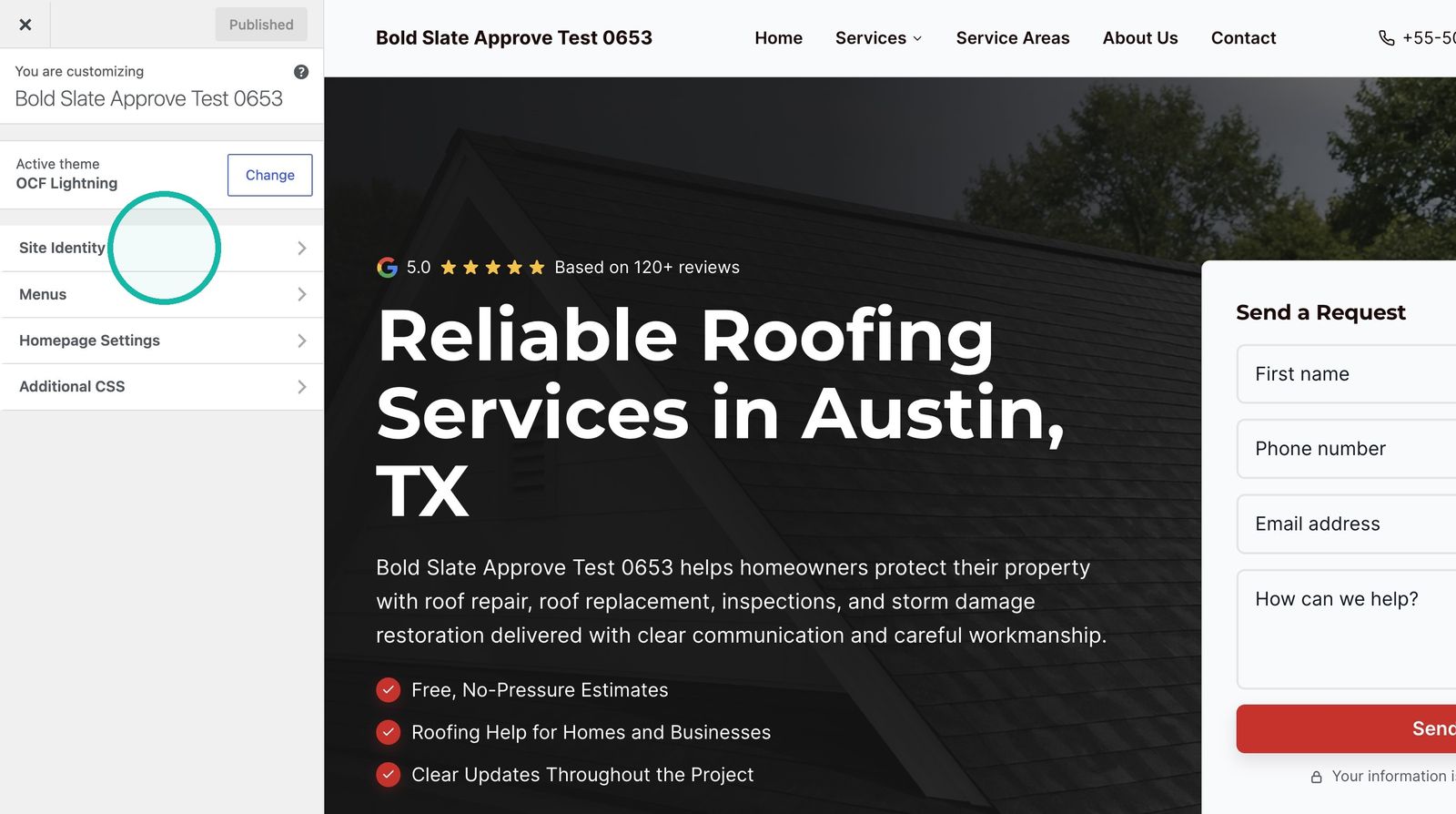
Open Site Identity Click Site Identity.
-
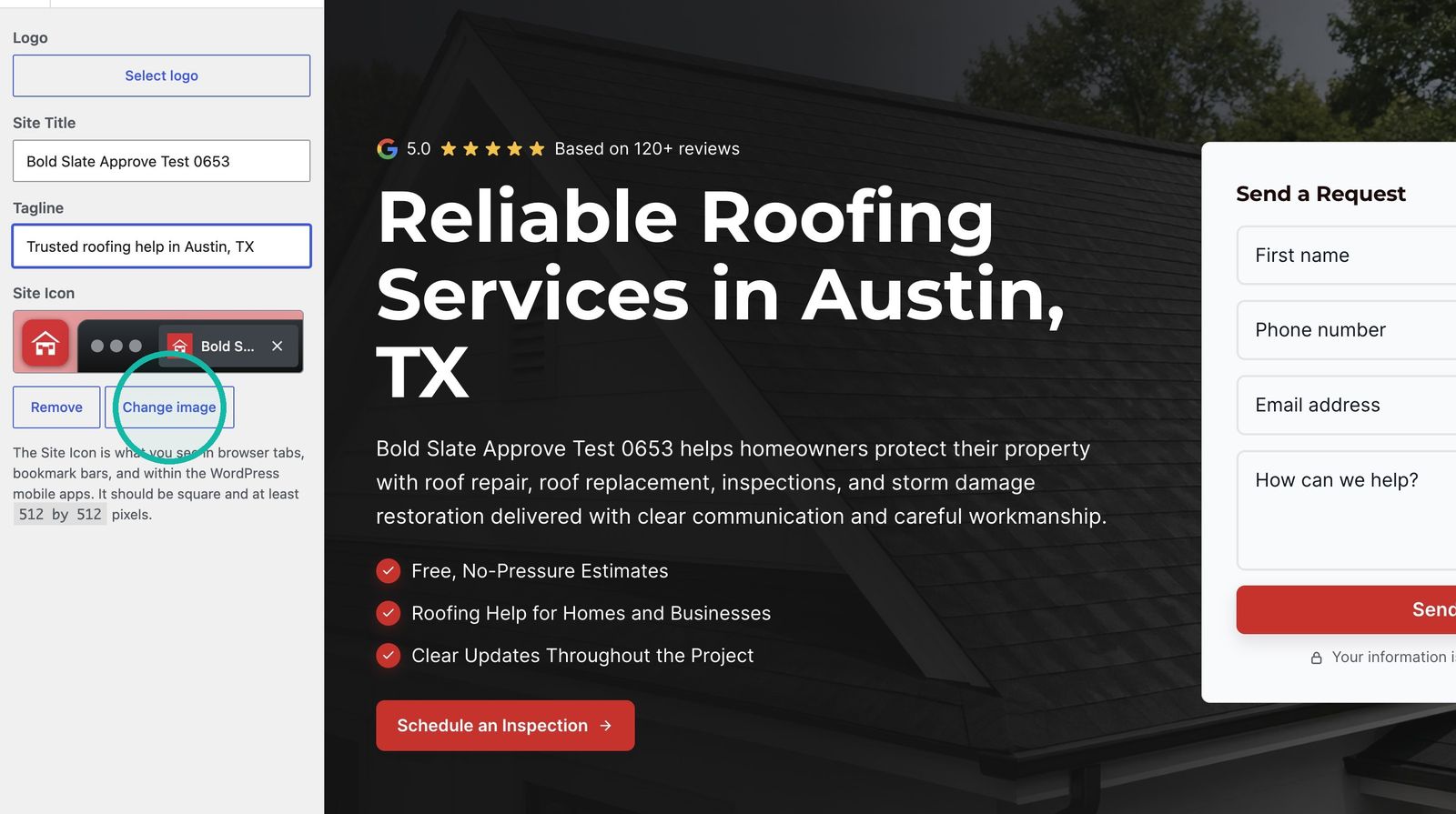
Update the tagline or icon Type a new Tagline. Under Site Icon, click Change image or Select Site Icon.
-
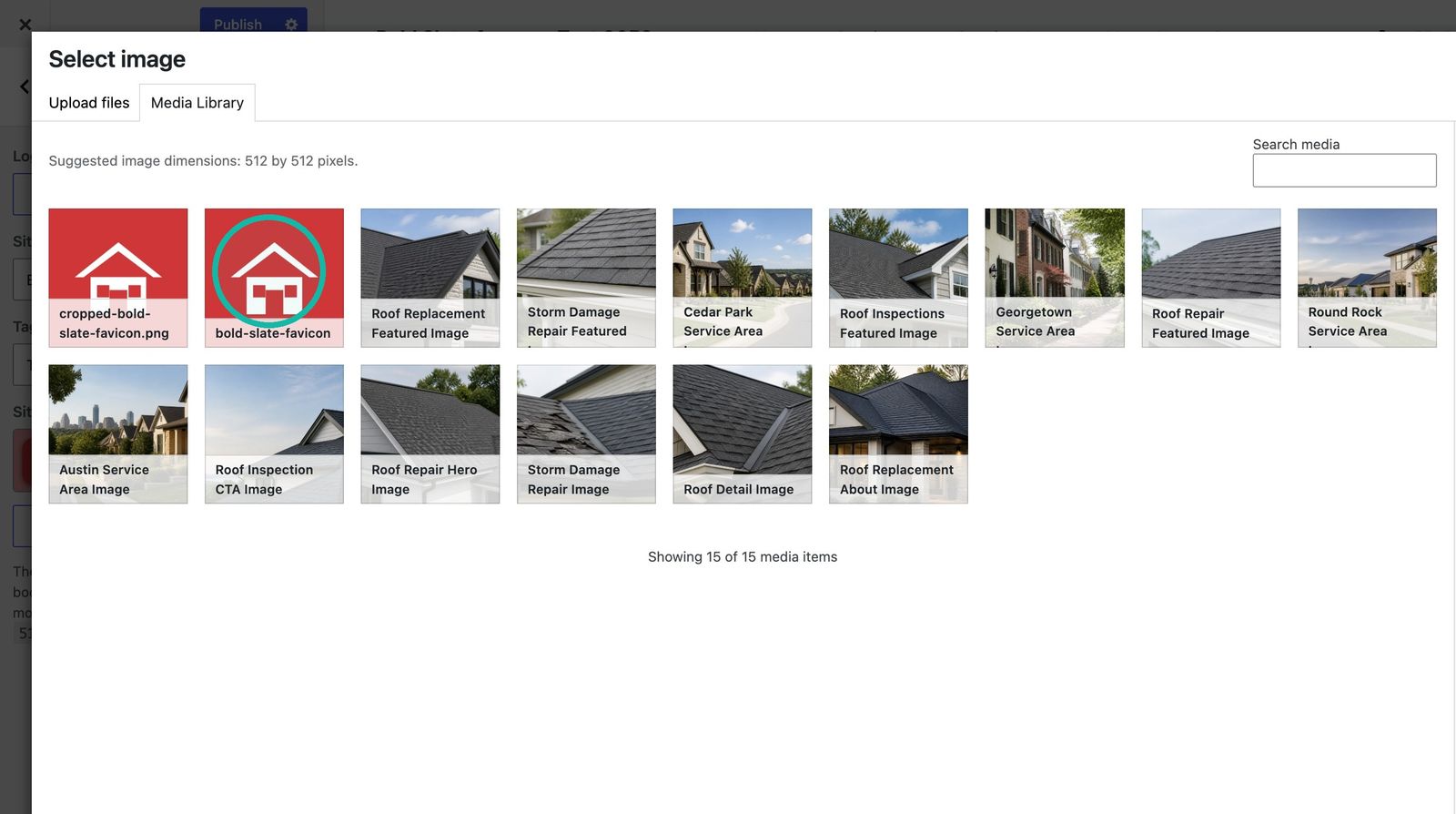
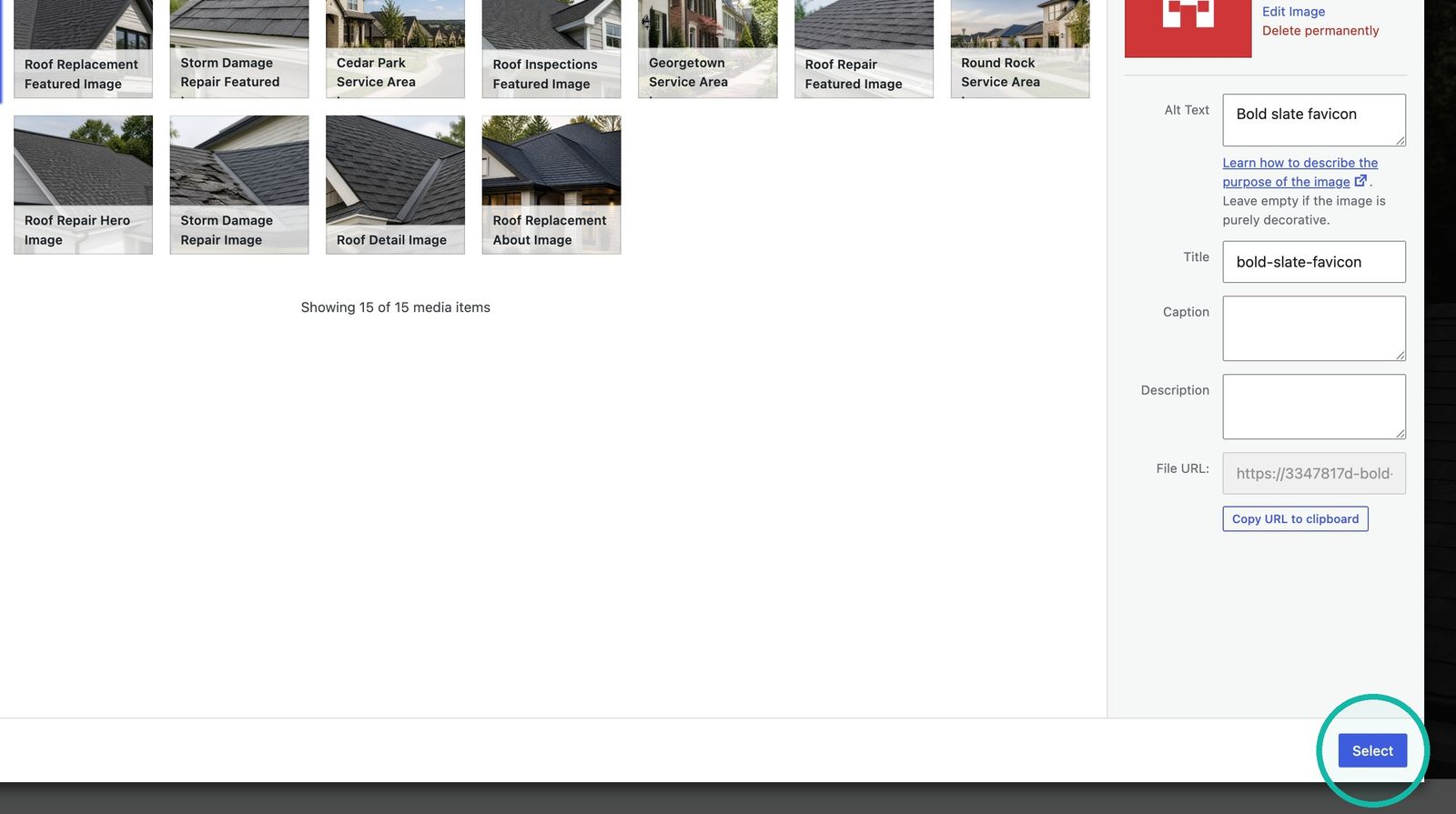
Choose your favicon Pick an image from the Media Library or upload a square one. Click Select and confirm any crop prompt.
-
Publish Click Publish to save.
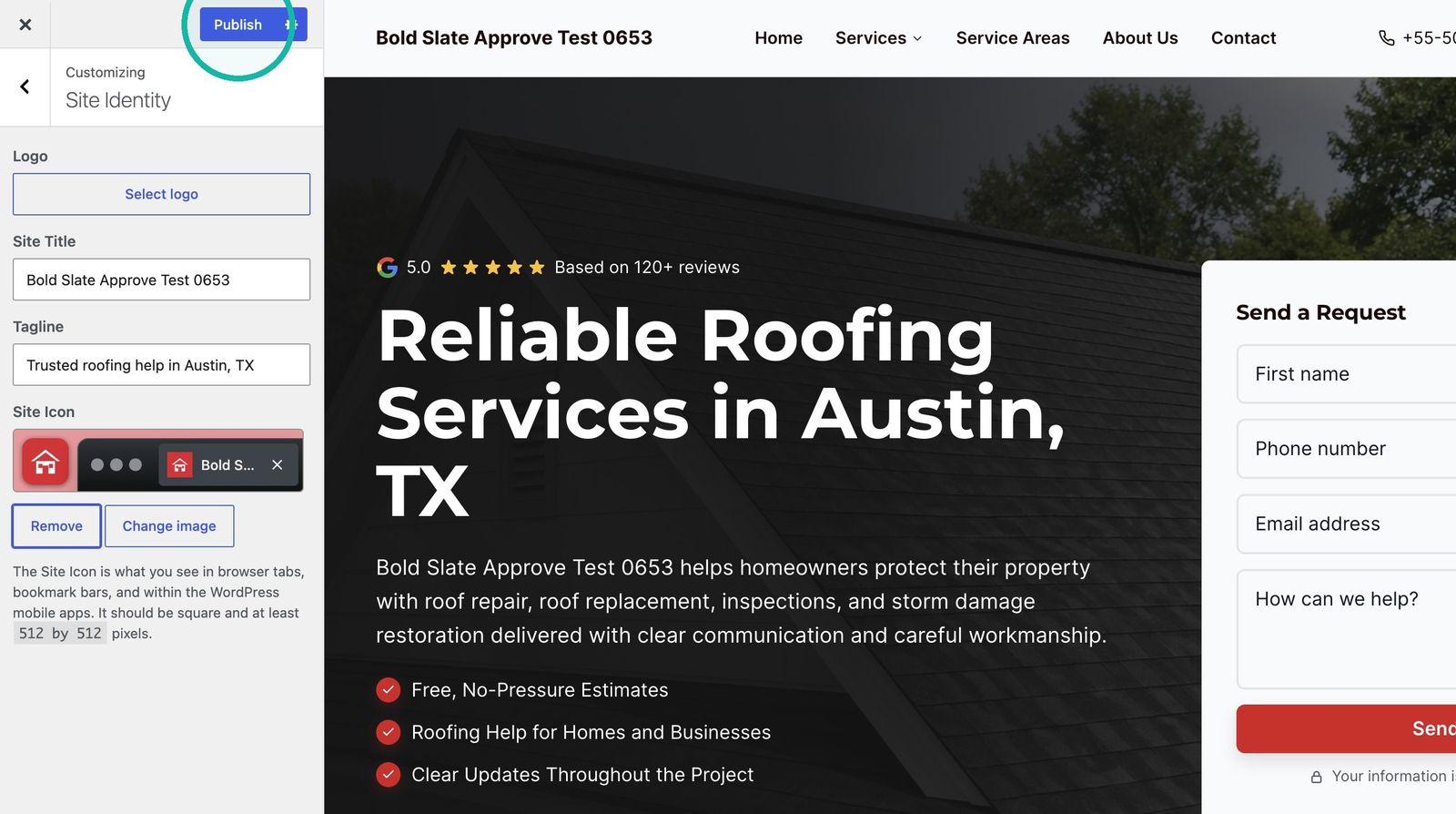
Good to know: browsers cache favicons, so the new icon may not show right away. Refresh or open the site in a private window.
Troubleshooting
- Crop error with an existing image: upload a square 512 by 512 PNG and select that instead.
- Can't log in or saving fails: chat with us and include your site URL.
Still stuck?
Chat with us and we'll reply right here, usually in a few minutes.